Getting Started
Setting up a worker's profile
A worker never signs themselves up — an admin creates their account first, from Organization → Workers, and it starts them off with an email invite. From there it's three steps: log in, set up their profile, and see what needs their attention.
Log in
The link in that invite email, or fieldtec.app/login directly — email and password, or a magic login link sent by email. There's nothing to sign up for here; the account already exists.
Set up their profile
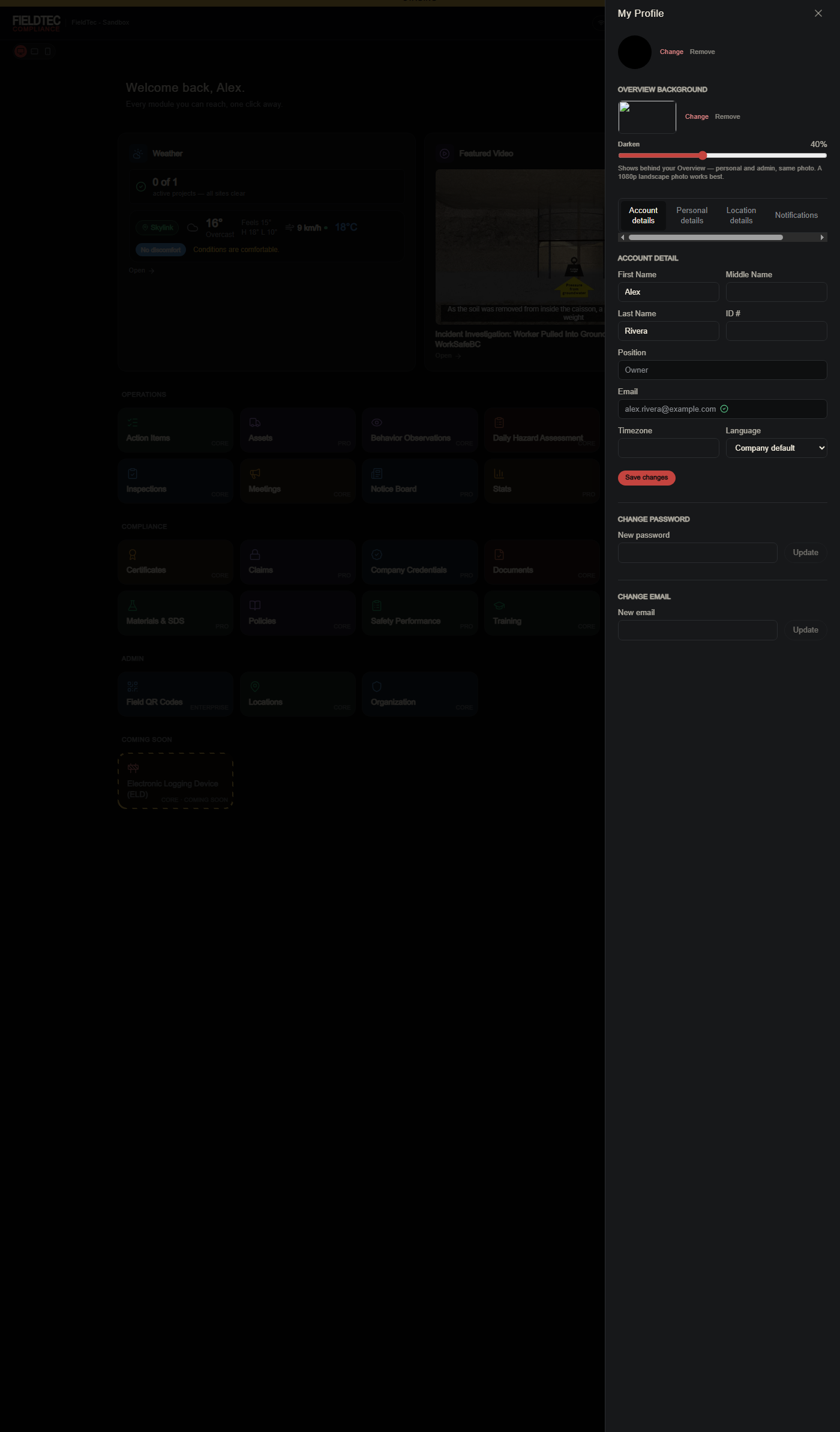
Reached from the avatar menu, top right, from anywhere in the app — Edit Profile. Photo, name, timezone, and language all live here, along with changing a password or email.
Where to start
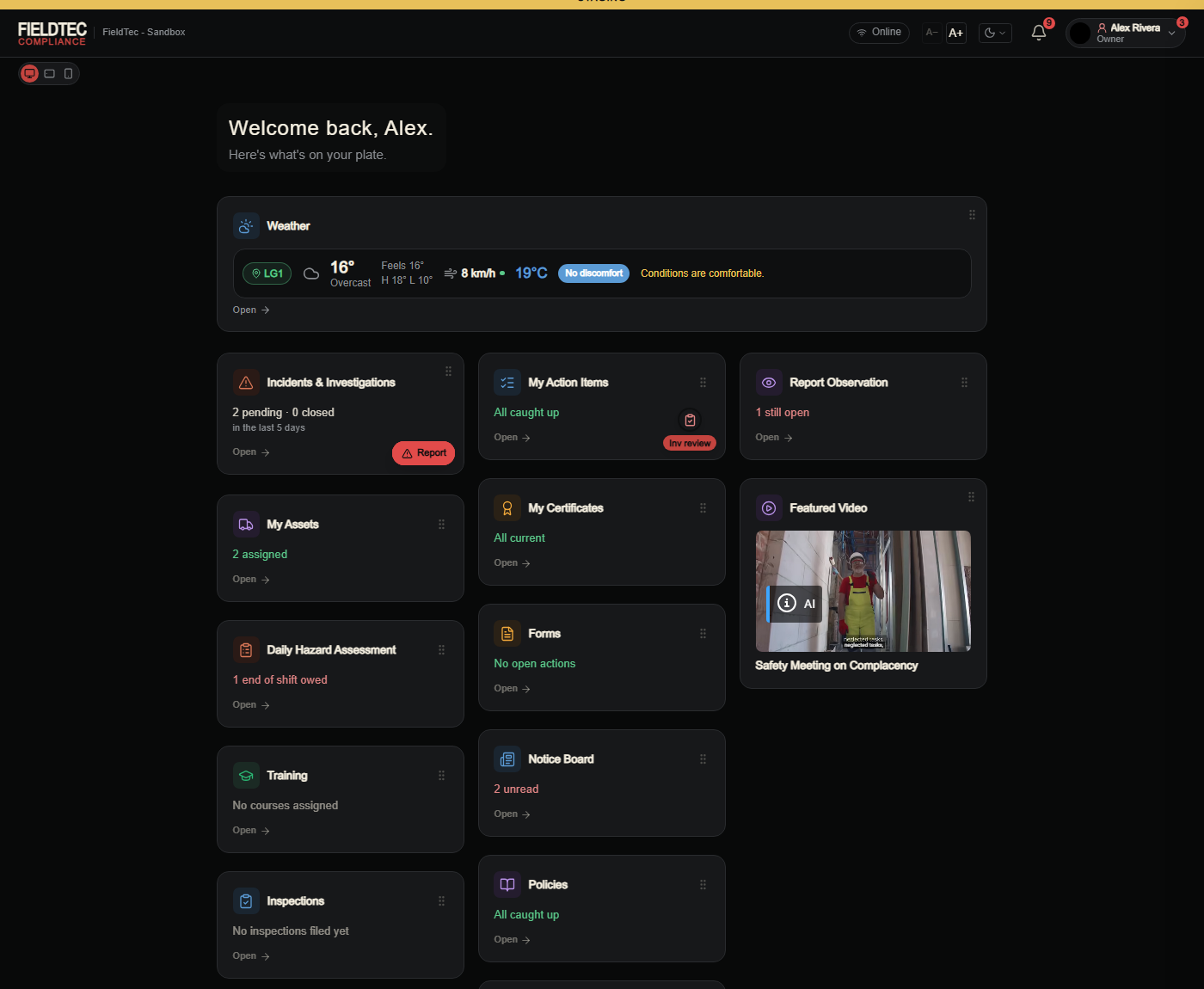
Every worker lands on their own personal Overview — never a company-wide screen. What's on it depends entirely on their position and what's been turned on for them (see "How permissions and widget visibility work"), but the fastest way in is the same for everyone: start with the Needs you list at the top, which gathers everything waiting on them in one place — then look for red on the cards below. Anything flagged red is the thing that actually needs doing right now — an end-of-shift check still owed, an observation still open, a notice still unread. Green or grey means caught up.